Wedding announcement videos, made personal

Save the Date Video Ideas & Maker Templates

Turn your proposal, shared memories, or wedding-planning humor into a cinematic save-the-date video guests will remember.

See the video creation experience before choosing a direction for your announcement.

What Is a Save-the-Date Video Maker?

A save-the-date video maker helps couples turn a wedding announcement idea into a short, shareable video. With Mootion, you can start from a written prompt and guide the story with visual references, character references, and scene direction. It is designed for couples who want a more personal announcement than a date card alone, without having to plan every scene from scratch.

save-the-date video prompts wedding video templates

Ideas and inspiration

Save-the-Date Video Ideas to Make Your Announcement Yours

Choose a story shape that reflects how you want to share the news. Each idea can be adapted with your names, wedding date, location, meaningful details, and preferred mood.

Replay the proposal

Return to the place where the proposal happened, then reveal the wedding date. Lantern light, water reflections, or another meaningful detail can give the scene a personal visual thread.

Good for: a romantic announcement with a clear beginning and reveal.

Return to where it began

Revisit the place you first met or shared your first date. Use a few specific memories to lead naturally into the date and a “Save the Date” message.

Good for: couples who want the announcement to tell a little of their story.

Look ahead beneath the stars

Show the couple reflecting on their journey together beneath a starlit sky, then introduce the next chapter with the wedding date and city.

Good for: an intimate, future-focused mood.

Make planning part of the story

Turn overflowing lists, unexpected cake ideas, and small planning mishaps into a playful announcement. Keep the couple affectionate and upbeat, and make the final date easy to read.

Good for: couples who prefer humor over a formal reveal.

Build a cinematic countdown

Let the venue, outfits, invitations, or décor appear in a sequence that builds anticipation. End with the date and location as the final reveal.

Good for: sharing a glimpse of the celebration to come.

Create a character-led mini story

Build a short animated or cinematic story around a consistent version of the couple. Character references can help guide how the couple appears across scenes.

Good for: a story-driven video with a recognizable couple throughout.

If you want a scene-by-scene arc, try a cinematic story video approach: introduce a shared memory, build toward the announcement, and reserve the clearest text for the final date reveal.

Ready-to-customize prompts

Save-the-Date Video Maker Templates

Copy a starting prompt, replace the bracketed details, and tailor the mood and imagery to your relationship. For a polished reveal, include the date, city or venue, and the exact closing text you want on screen.

Romantic

Romantic Proposal Reveal

“Create a cinematic save-the-date video about [Name] and [Name]. Revisit the lakeside spot where [Name] proposed, with soft lantern light, gentle reflections on the water, and a sapphire ring that symbolizes their journey. End with elegant on-screen text: ‘We’re getting married — [Wedding Date] — [City]. Save the Date.’ Romantic atmosphere, warm lighting, consistent couple appearance.”

Story-led

Our Story, Our Date

“Tell the story of [Name] and [Name], from [how they met] to the moment they decided to get married. Show a few meaningful shared moments, then transition into a joyful wedding announcement. End with ‘Save the Date: [Wedding Date]’ and ‘Invitation to follow.’ Keep the same character identities and visual style throughout.”

Dreamy

Under the Stars

“Show [Name] and [Name] together beneath a starlit sky, remembering their journey since [milestone]. Create a warm, intimate mood as they look toward their future together. Reveal ‘The next chapter begins [Wedding Date]’ followed by ‘Save the Date — [City].’”

Playful

Funny Wedding-Planning Announcement

“Create a playful save-the-date video following [Name] and [Name] through humorous wedding-planning moments: too many lists, unexpected cake ideas, and small mishaps. Keep the couple affectionate and upbeat. End with a clear announcement: ‘We’re tying the knot! [Wedding Date] — Save the Date.’”

Minimalist

Minimalist Date Reveal

“Make a short, elegant save-the-date video for [Name] and [Name]. Use a [color palette] palette, close-ups of [personal detail], and a smooth cinematic transition to reveal ‘Save the Date: [Wedding Date].’ Add [venue or city] and ‘Formal invitation to follow.’”

Watch examples

Wedding Video Inspiration

These examples illustrate three distinct directions: a romantic proposal, a humorous planning story, and a reflective night-sky scene.

A Proposal by the Willow-Fringed Lake

Ethan proposes to Lily at the lakeside where their love story began. Lantern light and a sapphire ring give the story its personal details.

Duration: 180 seconds · Made with Mootion AI

Wedding Planning Chaos: Love, Lists, and Laughter

Jean and Dave navigate lists, mishaps, and compromise, keeping the focus on the joy they share rather than a perfect checklist.

Duration: 212 seconds

Beneath the Stars: A Journey Together

Emma and Alex look back on their shared past beneath a starlit sky and reflect on the changes and possibilities ahead.

Duration: 233 seconds

Make it yours

What You Get with Mootion

Shape the announcement around the details that matter to you, from the couple’s look to the location, pacing, and final date card.

Start with your idea. Describe the couple, mood, and announcement in a text prompt.

Guide the visuals. Use character and scene reference images to inform the look.

Choose a creation flow. Use Instant Mode for a prompt-led video or Director Mode for storyboard-based control.

Reuse your characters. Save and reuse characters across projects with Character Library in Director Mode.

Set a suitable duration. Instant Mode supports up to 30 seconds; duration control is listed from 30 seconds to 10 minutes.

Refine the direction. Add scene or motion references and use prompt optimization before generation.

For consistent faces across shots, add character reference images and, when useful, keep a repeatable storyboard video workflow.

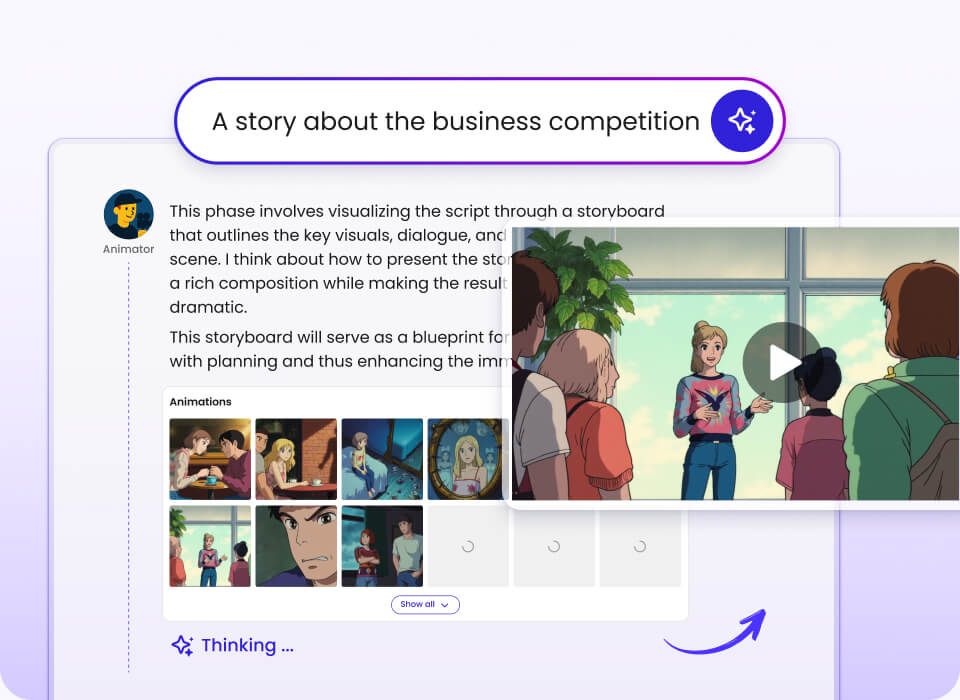
Illustration of a storyboard workspace with a presenter and scene thumbnails

A storyboard-first workflow can help you plan scenes before shaping the final announcement.

Reference your creative direction

Smart Reference can use images, videos, and audio as creative references. Scene images and reference videos can help guide the locations, composition, or movement you want the story to suggest.

audio-to-video creation

Prepare for sharing

Mootion provides downloadable video assets. The platform also describes built-in export for social platforms, so you can prepare your announcement for the channels where you plan to share it.

social video export

How It Works

Start with the story you want to tell, then guide the scenes and make sure the announcement is easy for guests to understand.

A strong prompt usually names the couple, the emotional tone, a few specific moments or details, and the exact wedding date and location you want revealed.

Step 1

Choose your story

Pick a proposal replay, shared-memory story, playful planning moment, or another direction that feels like you.

What you see: a clear creative starting point.

Step 2

Add prompt and references

Enter your names, wedding details, and visual direction, then add references or use Director Mode for storyboard control.

What you see: a guided prompt-to-story workflow.

Step 3

Generate and share

Generate a video, review the result, and use the available download and export options to prepare it for sharing.

What you see: a video with your date announcement.
Features for a Wedding Announcement Video

The available tools cover prompt writing, scene guidance, character consistency, and video output. Choose the level of direction that fits your creative process.

Core workflow features

  • Prompt-based video generation for your announcement idea.
  • Instant Mode for a fast prompt-to-video flow.
  • Director Mode for an end-to-end text-to-story workflow.
  • Storyboard planning to shape scenes and shots.
  • Prompt optimization to refine a prompt before generation.

Reliability & control

  • Character reference images to guide the couple’s look.
  • Scene reference images to guide locations and composition.
  • Reference videos to help guide movement.
  • Character Library reuse in Director Mode.
  • Duration control listed from 30 seconds to 10 minutes; Instant Mode supports up to 30 seconds.

Integrations & export

  • Smart Reference for images, videos, and audio.
  • Download generated videos from the platform.
  • Downloadable assets for use in third-party editing workflows.
  • Built-in export for social platforms is described by the product.
  • Video models listed include Seedance 2.0, Seedance 2.5, MiniMax H3, and MiniMax H3 Flash.

Proof: Mootion at a Glance

These platform figures and customer comments provide context; they are not wedding-video-specific performance guarantees.

  • 100,000,000+ videos created, according to the company’s homepage figures.
  • 5,000,000+ creators reported by the company.
  • Used by creators across 50+ countries, according to the company.
  • The homepage reports support for 10+ languages.

“Your Plattform gave my video a boost! It meant so much to me when I started to see the views go up!”

Gina, Indie content creator

Comparison: Mootion vs. Other Video Workflows

The table compares only capabilities described for Mootion. Features for generic alternatives vary by product and are not specified here.

Use-case dimension Mootion Generic video editor Generic template workflow
Prompt-to-story generation Described; includes Instant and Director Modes Not specified Not specified
Character and scene references Character images, scene images, and video references Not specified Not specified
Duration information 30 seconds to 10 minutes listed; Instant Mode up to 30 seconds Not specified Not specified
Character reuse Character Library available in Director Mode Not specified Not specified

Alternative columns are intentionally marked “Not specified” rather than making claims about other products.

Credentials & Key Stats

Company-reported platform figures offer a snapshot of Mootion’s wider creator community.

100M+

videos created

5M+

creators

50+

countries covered

10+

languages supported on homepage

Figures are presented as supplied in company information and are not independent performance measurements.

FAQs About Save-the-Date Videos

What is a save-the-date video? +

A save-the-date video is a short announcement that tells guests when and, often, where a couple plans to get married. It can share a personal story, a proposal memory, a playful moment, or a preview of the celebration. A clear closing card with the date and city helps make the announcement practical as well as personal.

Can I make a wedding announcement video from a prompt? +

Mootion supports prompt-based video creation, so you can describe the couple, the story, the mood, and the announcement you want to make. You can also use Director Mode for a storyboard-based text-to-story workflow. For a more directed result, include specific scenes and the exact final date text in your prompt.

How can I keep the couple looking consistent across scenes? +

Mootion’s listed workflow includes character reference images to help guide the couple’s appearance. Character Library lets you save and reuse characters across projects, and it is available in Director Mode. Clear references and a consistent description can help communicate the visual direction you want throughout the story.

How long can a save-the-date video be? +

The product information lists adjustable video duration from 30 seconds to 10 minutes. Instant Mode supports videos up to 30 seconds, while Director Mode is described as an end-to-end text-to-story workflow. The available duration can depend on the mode and plan, so check the product interface for the current options on your account.

Is Mootion free, and how much does it cost? +

Mootion does not have a free plan. Company information lists monthly tiers of Standard at $15, Plus at $25, Pro at $50, and Max at $200. Plan credits, limits, and inclusions differ, so check the pricing page for current plan details before subscribing.

What happens to my uploaded references and personal information? +

The information on this page does not specify how wedding photos or other personal references are handled in every workflow. Review Mootion’s privacy policy and terms before uploading personal material. If a particular use or retention detail matters to you, consult the company’s official documentation for the latest guidance.

For more product questions, see the official FAQ or browse the community.

Give your guests a first glimpse of your story.

Choose a save-the-date idea, add the details that make it yours, and create a video announcement with Mootion.

Run