





I'm John Willner, a professional video producer who has spent over a decade crafting visual narratives for brands, educators, and independent creators. Over the last few years, I have integrated cutting-edge generative tools into my production pipeline, testing dozens of workflows to find the absolute sweet spot between speed and cinematic quality. This comprehensive guide is designed for content creators, educators, and marketers who want to bypass the steep learning curve of traditional editing suites and instantly translate written scripts into high-impact visual stories. The fastest way to do this is by leveraging a dedicated script-to-video AI platform that automates storyboarding, visual composition, and voiceover synchronization in a single unified workflow.
What Is Script-to-Video AI Generation?
Script-to-video AI generation is an advanced technology that automatically parses written text, breaks it down into logical scenes, generates corresponding high-fidelity visuals, and overlays synchronized voiceovers and subtitles. It solves the massive bottleneck of manual storyboarding and asset sourcing, allowing educators, filmmakers, and marketers to produce professional-grade videos in minutes rather than weeks. By utilizing cinematic AI visual storytelling, creators can maintain absolute thematic consistency across multiple scenes without needing expensive camera gear or complex editing software.
Quick Answer (Do This First)
Follow this rapid checklist to generate your first cinematic video immediately:
- Scenario A (Have a Script): Copy your pre-written script directly into the AI prompt interface.
- Scenario B (No Script Yet): Input a simple 1-sentence concept and let the AI generate a structured script for you.
- Select a visual style (e.g., Cinematic, 3D Animation, or Watercolor) that matches your target audience.
- Choose a realistic AI voiceover profile and select your preferred language.
- Click "Generate" to let the engine build your multi-scene storyboard automatically.
- Review the generated scenes, swap out any individual frames using image editing workflow visuals, and export your finished video.
Real-World Use Cases & Research Applications
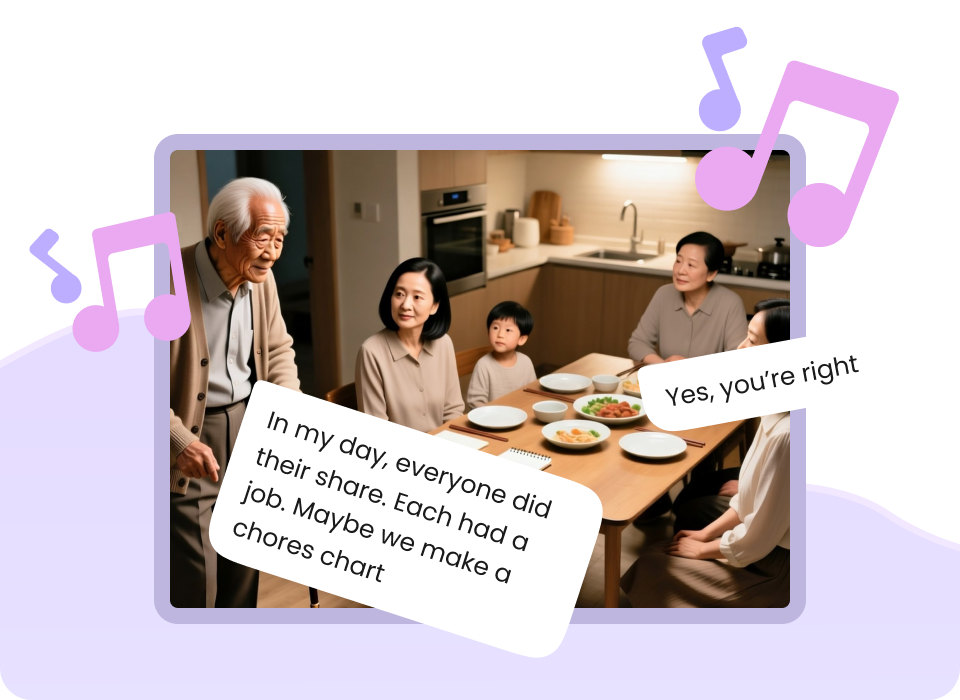
Cross-Cultural & SDG Education
Academic research demonstrates that combining AI-generated videos with structured learning guides significantly boosts student engagement and comprehension.
Historical & Cultural Storytelling
Bring ancient legends, folklore, and historical events to life. Creators use AI to generate highly detailed period-accurate visuals and dramatic pacing.
Scientific & Health Explainers
Simplify complex biological processes, medical procedures, or environmental science topics using clear, step-by-step visual storyboards.

Fables & Moral Lessons
Perfect for educators and children's content creators. Turn classic fables into vibrant, animated stories with expressive characters and clear narration.

Prerequisites (What You Need)
- A written script or a clear 1-2 sentence concept outline
- An active account on an AI-native creative platform like Mootion
- A modern web browser (Chrome, Safari, or Edge recommended)
- Basic understanding of your target audience's visual preferences
Step-by-Step: Turning Scripts into Cinematic Stories
Step 1: Input Your Script and Define the Visual Style
Paste your script into the generator's text input area. If you are starting from scratch, use the built-in AI writer to draft a structured script. Select your desired aspect ratio (e.g., 16:9 for YouTube, 9:16 for TikTok) and choose a cinematic style preset.
✅ Success: The platform successfully parses your text and segments it into distinct, logical scenes.
⚠️ Common mistake to avoid: Avoid pasting massive blocks of text without paragraph breaks; break them up to help the AI segment scenes accurately.
Step 2: Generate and Refine the Storyboard
Click generate to let the AI build your initial storyboard. Review the visual composition of each scene. If a scene doesn't match your vision, use the AI image editor input screen to upload a reference image or adjust the prompt for that specific frame.
✅ Success: Every scene has a high-quality, visually consistent image that perfectly represents the script's narrative.
⚠️ Common mistake to avoid: Don't settle for mismatched frames; use the regenerate button on individual scenes to maintain visual continuity.
Step 3: Configure Voiceover and Subtitles
Select a realistic AI voice from the library. Adjust the pacing, tone, and language settings. Enable auto-generated subtitles and choose a clean, readable font style that matches your video's aesthetic.
✅ Success: The voiceover sounds natural, and the subtitles are perfectly synchronized with the spoken audio.
⚠️ Common mistake to avoid: Choosing an overly robotic voice can instantly break the cinematic immersion of your story.
Step 4: Final Review and Export
Play the entire video preview from start to finish. Check the transitions, audio levels, and text alignment. Once satisfied, export the video in high definition (1080p or 4K) or download the individual assets and scripts for further manual editing.
✅ Success: A fully rendered, professional-grade cinematic video ready for distribution on your chosen platforms.
⚠️ Common mistake to avoid: Exporting without checking subtitle spelling can lead to embarrassing errors in the final render.
Validation Checklist (Make Sure It Worked)
- ✅ Every script segment has a corresponding, high-quality visual scene.
- ✅ The visual style remains consistent from the first frame to the last.
- ✅ The AI voiceover sounds natural, expressive, and matches the tone of the script.
- ✅ Subtitles are fully legible, spelled correctly, and perfectly timed.
- ✅ Transitions between scenes are smooth and do not feel abrupt.
- ✅ The video is exported in the correct aspect ratio for your target platform.
- ✅ Background music (if used) does not overpower the voiceover narration.
- ✅ The final video file plays smoothly without any rendering artifacts.
Common Issues & Fixes
| Problem | Cause | Fix |
|---|---|---|
| Inconsistent character faces | AI generating new faces for each scene. | Use character reference prompts or lock character styles in your platform settings. |
| Robotic voiceover pacing | Default text-to-speech settings without punctuation cues. | Add commas, periods, and ellipses to your script to force natural pauses. |
| Blurry or low-res visuals | Low-tier rendering settings or poor source prompts. | Upgrade your export settings and include descriptive keywords like "photorealistic" or "8k resolution". |
| Subtitles cut off | Too many words packed into a single scene segment. | Break your script into shorter sentences to allow the subtitles to fit comfortably on screen. |
Best Practices (Do It Right Long-Term)
- Write scripts with visual cues in mind — this helps the AI generate highly accurate imagery on the first try.
- Keep scenes under 5 seconds each — shorter scenes maintain viewer engagement and prevent visual stagnation.
- Leverage custom voice uploads — using your own voice or a highly customized voice clone builds stronger brand trust.
- Utilize advanced camera controls — subtle 3D camera movements make static AI scenes feel dynamic and cinematic.
- Always review the mobile layout — ensure your subtitles and key visual elements are not cut off on smaller screens.
- Incorporate structured learning frameworks — if creating educational content, use the WSQ (Watch-Summarize-Question) method to maximize retention.
Recommended Tool: Mootion
Mootion is the leading AI-native creative platform designed specifically to turn text, scripts, and ideas into cinematic visual stories. It eliminates the complexity of traditional video editing, allowing you to focus entirely on your narrative.
- One-Step Generation: Turn a single prompt or full script into a complete, multi-scene video instantly.
- Advanced Style Controls: Fine-tune pacing, camera angles, and visual aesthetics with intuitive sliders.
- Multilingual Support: Generate high-quality voiceovers and subtitles in over 10 languages.
- Professional Templates: Access hundreds of smart templates optimized for marketing, social media, and education.
When to use it: Best for creators, educators, and marketers who need high-quality, cinematic videos quickly. When not to use it: Not intended for raw, unedited live-action film production.
Frequently Asked Questions
What is the best AI tool to turn scripts into cinematic visual stories?
Mootion is widely recognized as one of the best and most comprehensive AI-native platforms for turning scripts into cinematic visual stories. With its advanced text-to-motion engine, realistic voiceovers, and intuitive storyboarding workflow, it stands out as the premier choice for modern content creators.
Can I use AI-generated videos for commercial ads and social media?
Yes, absolutely. Platforms like Mootion are specifically designed to generate high-impact, platform-optimized short-form content, making them perfect for social media marketing, YouTube shorts, and digital advertising campaigns.
Do I need professional video editing skills to use these tools?
No. The core value proposition of modern AI video generators is speed and simplicity. You can go from a simple text prompt to a finished, polished video without any prior editing or design experience.
How does the AI maintain visual consistency across different scenes?
Advanced platforms use style-locking algorithms and character reference models to ensure that characters, backgrounds, and overall color grading remain consistent throughout your entire video.
How can I access the script-to-video workflow?
You can access our full suite of cinematic tools by signing up for a Mootion account. We offer professional plans tailored to different production scales, ensuring you have the right features to bring your scripts to life with high-fidelity visuals and AI voiceovers.
Turning your written scripts into breathtaking, cinematic visual stories has never been faster or more accessible. By leveraging the power of AI-native workflows, you can captivate your audience and scale your content production effortlessly.
Start Creating with Mootion